MyView
 > MyView
Available from the Parks & Rec Help menu, MyView is a new screen capture tool that lets you record the steps of an application issue and upload the recording to a new or existing support case in CRM:
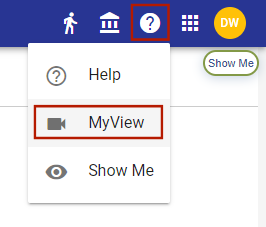
Selecting this option navigates you to a Terms of Use page on a new tab:
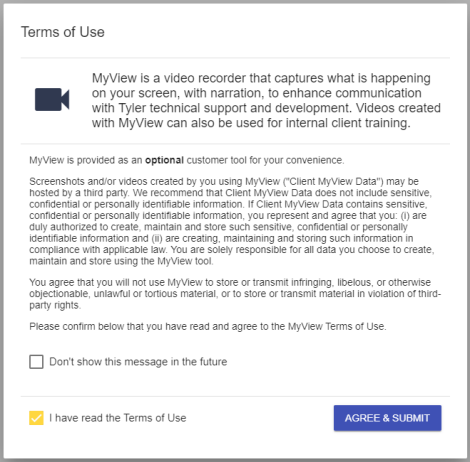
Note: Make sure your organization has granted the appropriate permission to use this feature and that you are following all of your organizational requirements while using it. Avoid using sensitive, confidential, or personally identifiable information in data captured using the MyView software.
Once you accept the terms of use, the start-up page displays:
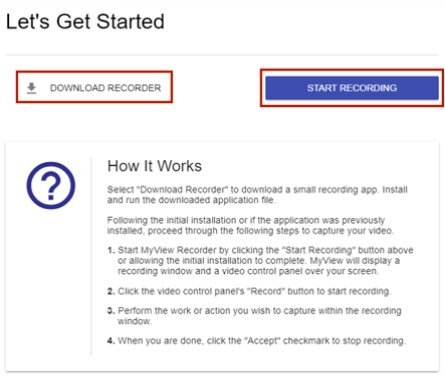
If you have not already done so, download the screen recorder, and click the START RECORDING button.
Your web browser might display a prompt to open the screen recorder:
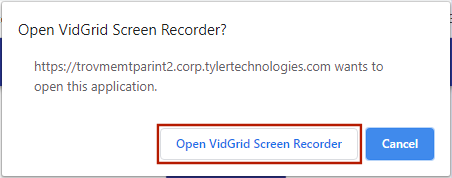
After you click the button to open the recorder, the browser also might display a message about changing your computer's power plan. Click Change Power Plan to update the plan, or click OK to continue with the current plan.
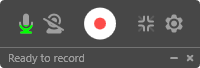
Once opened, the recorder appears near the bottom of the page:
Navigate back to your app (the original browser tab), so the recorder overlays the program screen. You may drag the recorder to whatever position you prefer:
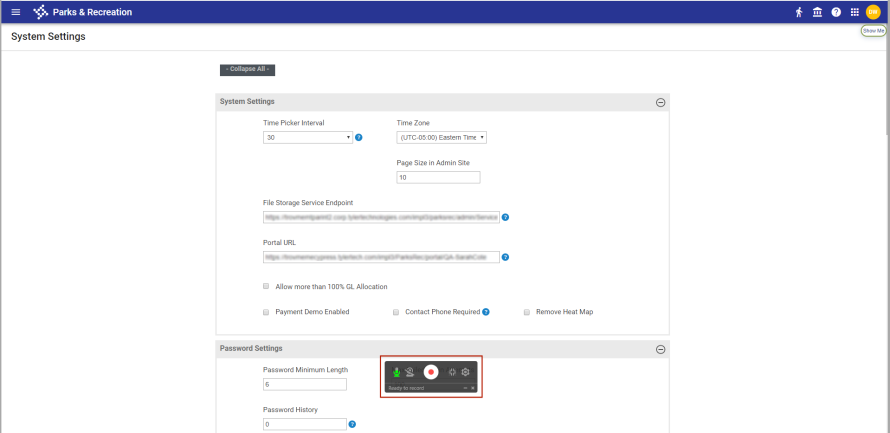
By default, the full screen is recorded. If you want to crop the recorded area, click the Exit fullscreen button  on the recorder. A gray box displays on screen:
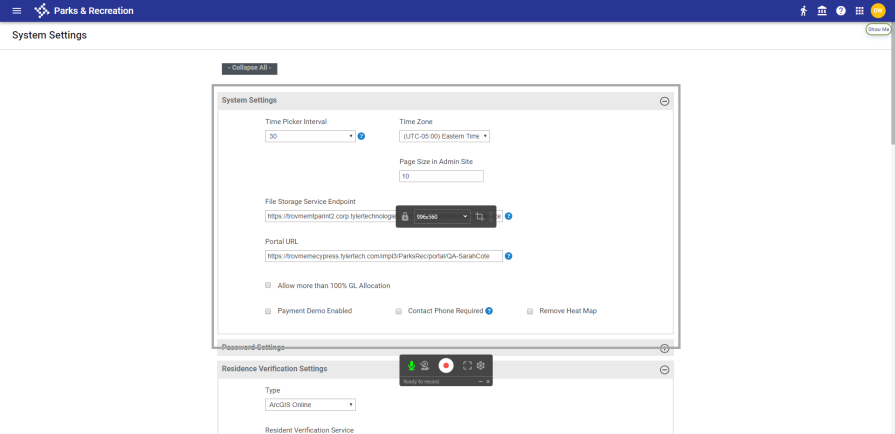
Drag the edges of the gray box to position the recording area over the portion of the screen you want to capture.
To begin your recording, click the Record button  . A three-second countdown begins. When the countdown reaches zero, navigate through the steps of the issue you want to report.
Note: Make sure to keep the MyView tab open.
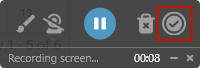
When you are finished with the recording, click the Finish button  on the recorder:
Return to the MyView tab in your browser, where you should see a link to your video and buttons to add it to a new or existing case:
