Team Builder
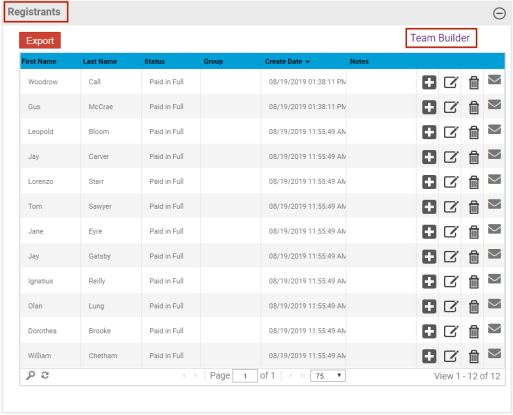
Parks & Rec > Class > Search > Create/Edit > Registrants > Team Builder
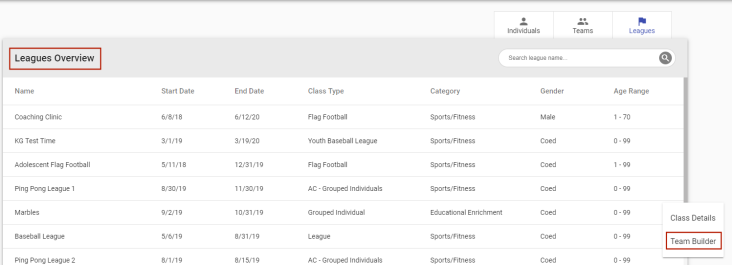
Parks & Rec > League Individuals > Leagues > Search > Vertical ellipsis > Team Builder
Team Builder lets you build and manage teams from one location.
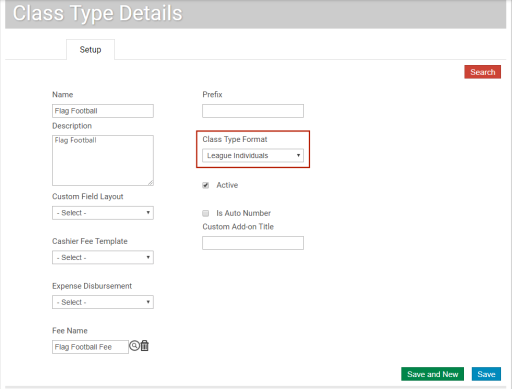
For any class that has a  Class Type Format of League Individuals, a Team Builder link is available in the Registrants section of the Class Details page and from the Leagues Overview page (Parks & Rec > League Individuals > Leagues):
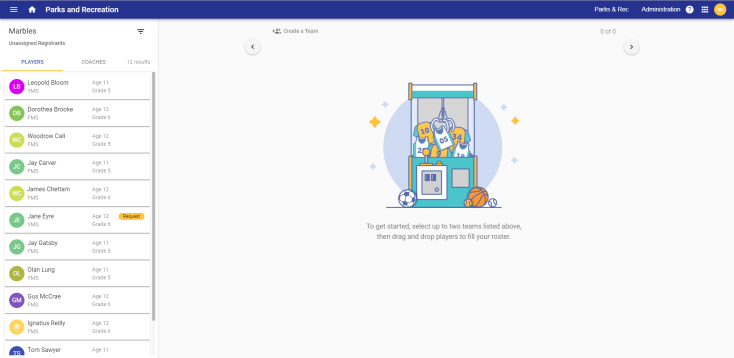
Either link opens the Team Builder page:
Viewing Lists of Players (Registrants) and Coaches
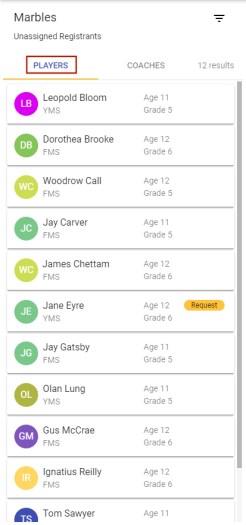
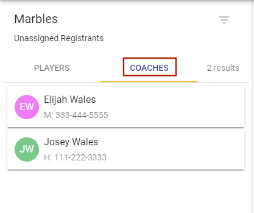
PLAYERS and COACHES tabs on the left side of the page contain lists of class registrants and volunteer coaches who are waiting to be assigned to teams:
|
|
Note: For registered coaches, a Coach button is available in the back office and citizen portal class registration processes. (Show me.)
Note: A Coach Description field is available on the Class Details page. (show me.)
Players and coaches appear on individual cards. Each player's card contains the player's name, affiliated school, age and grade; each coach's card contains the coach's name, home phone and mobile phone. An avatar of the player's or coach's initials, color-coded by first initial, also appears on each card:


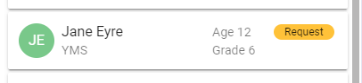
If a player has made a special request (show me) during the registration process, it shows as a Request icon on the player's card. Hovering over the icon shows the text of the request:

Filtering Unassigned Players
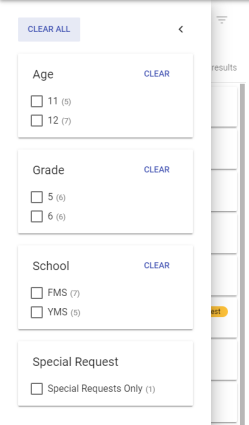
To filter the list of unassigned players, click the filter icon  above the list of names. The filter gives you options to filter by age, grade, school and special request:
Creating Teams
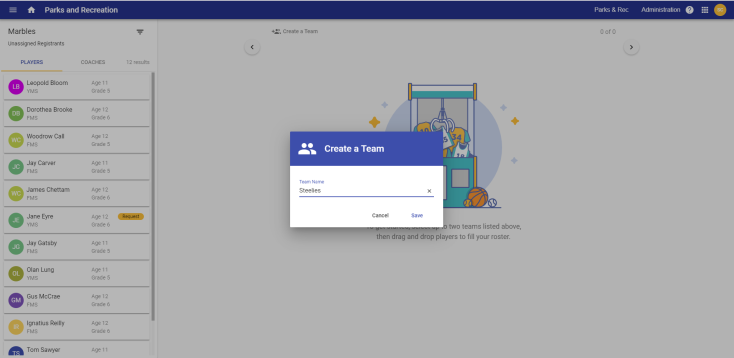
To create a team, click the Create a Team button at the top right side of the Team Builder page. On the Create a Team dialog that opens, type the Team Name and click Save:
As you create teams, they are added as individual, color-coded cards on a carousel that spans the top of the right side of the page. Each card shows the name of the team, the number of players  and the number of coaches
  :
:
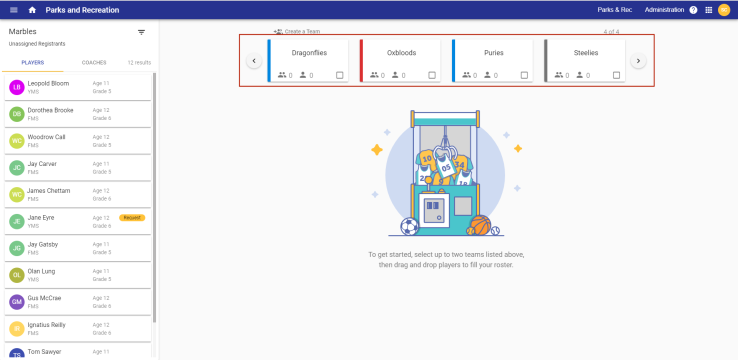
Four teams at a time appear on the carousel. To view additional teams, click the buttons  on either end of the carousel:
Assigning Registrants and Coaches to Teams
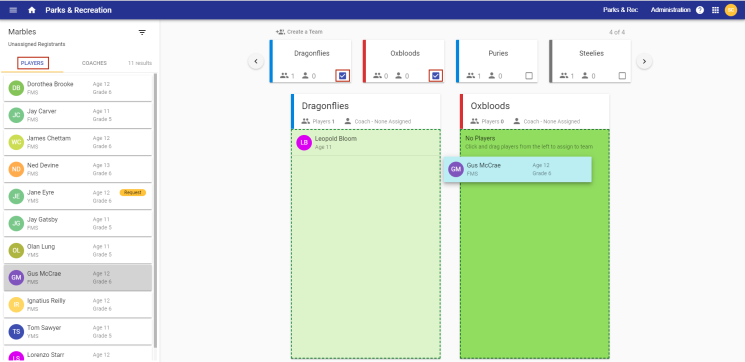
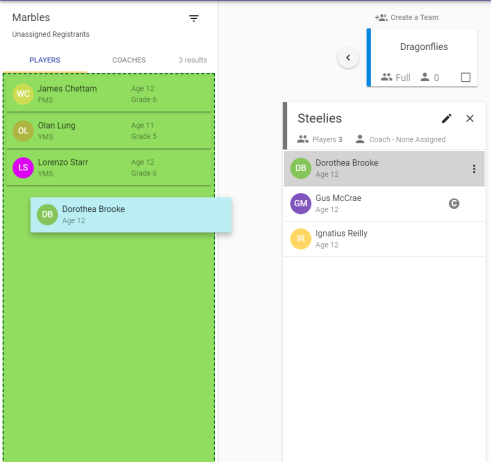
To assign registrants to a team, select the check box on the team card to expand it below the carousel, drag cards from the PLAYERS tab on the left side of the page, and drop them onto the roster portion of the expanded team card. (As a player's card nears the expanded team card, the drop zone turns a bold green.) Two team cards at a time may be expanded below the carousel:
Follow the same process for coaches, dragging cards from the COACHES tab to the appropriate teams:
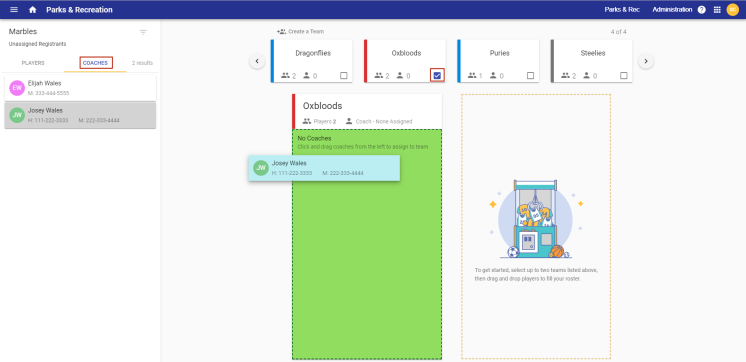
Note: To switch views between players and coaches on an expanded team card, select the corresponding PLAYERS or COACHES tab on the left side of the page.
As you assign players and coaches, the numbers next to their avatars increment:
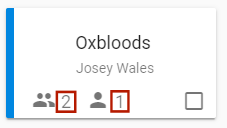
Note: Changes to team cards are saved automatically.
To close an expanded team card, clear the check box in the bottom-right corner of the collapsed team card, or click the X in the top-right corner of the expanded card:
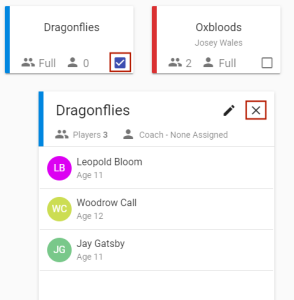
To move a player or coach from one team to another, select the two teams to expand their cards side-by-side, and drag and drop the player's or coach's card from the current team to the new team:
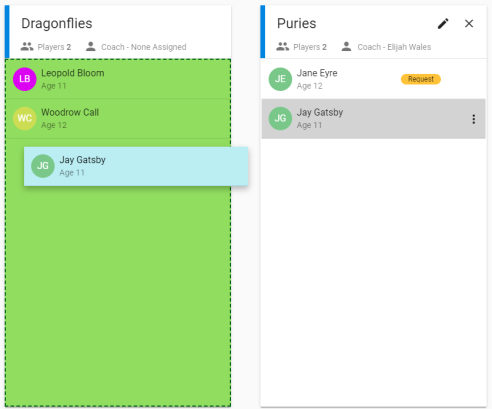
To remove a player or coach from a team, drag the card back to the appropriate tab on the left side of the page:
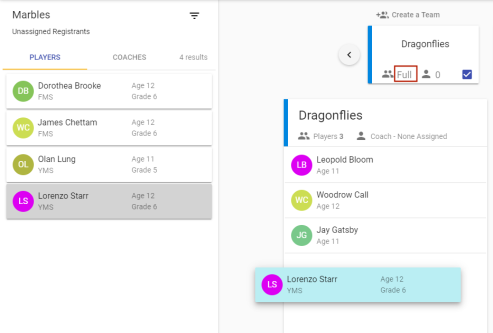
In building a team, if the maximum number of players or coaches is reached according to the Maximum Players per Team or Maximum Coaches per Team value on the Class Details page (show me), the word Full displays next to the player or coach avatar, and the drop zone for adding players or coaches is disabled (remains white):
In Parks & Rec service pack 2023.1.14, an Auto Assign Teams button was added to Team Builder:
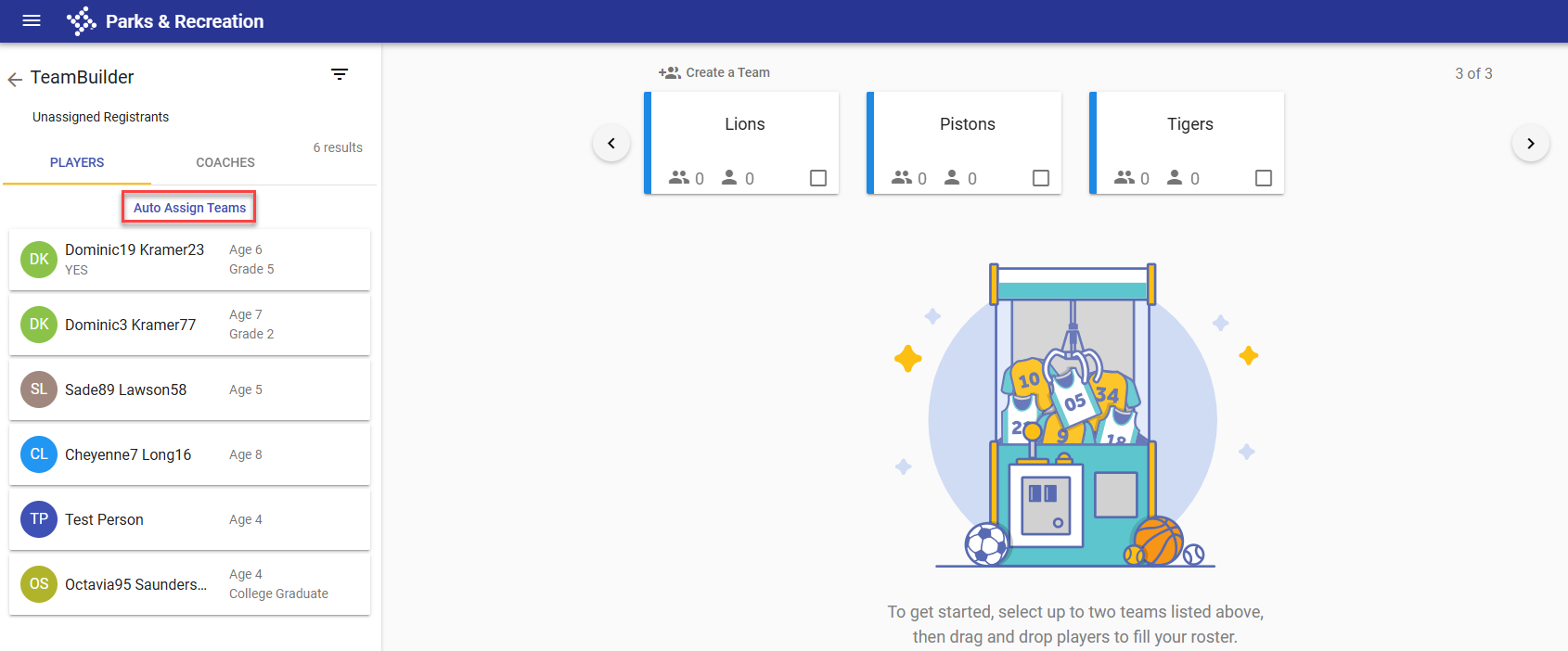
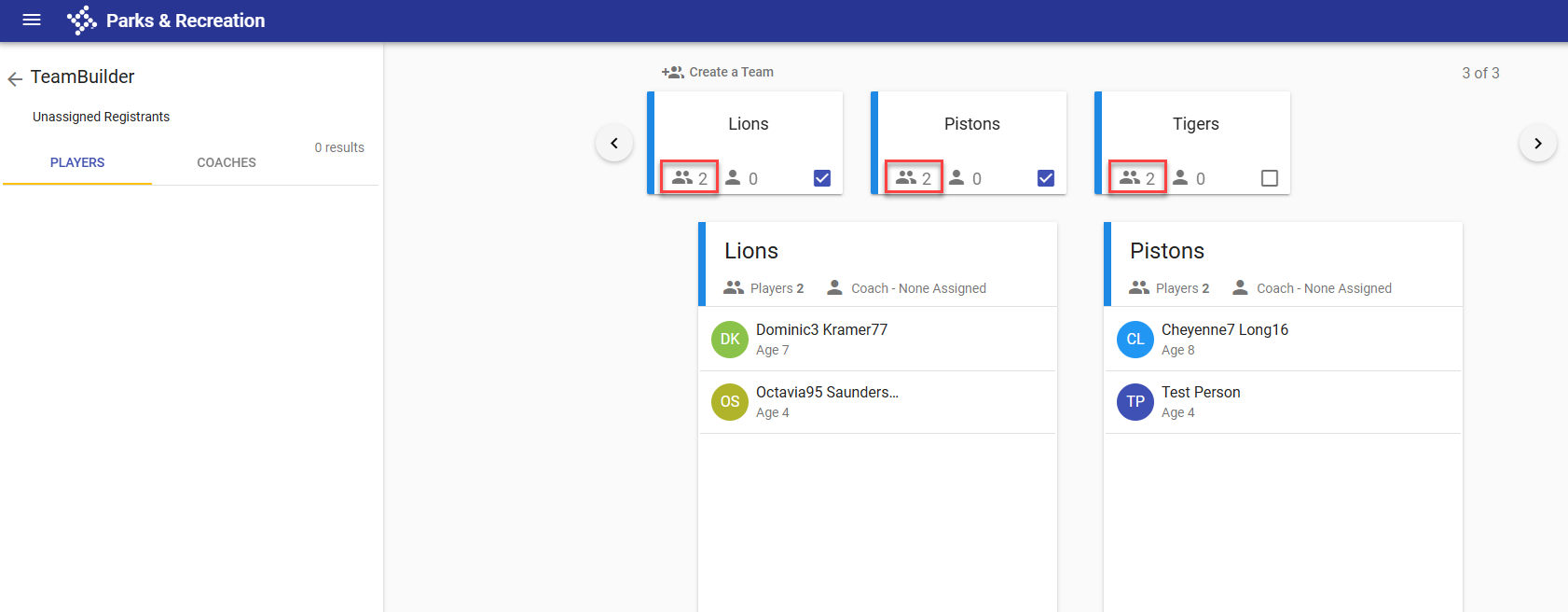
Clicking this button automatically distributes players on teams evenly, with an equal mix of ages:
Designating Team Captains and Head Coaches
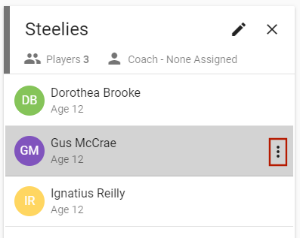
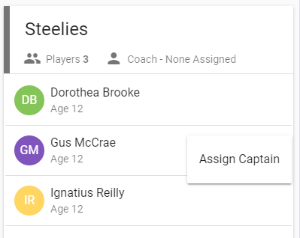
To designate one or more team captains, click the vertical ellipsis on the right side of an assigned player's card, and select Assign Captain:
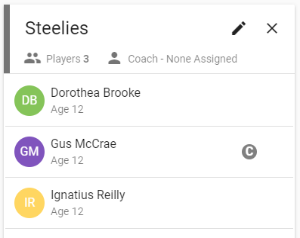
A captain icon  appears on the card:
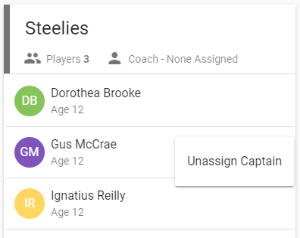
To remove a captain designation, click the vertical ellipsis, and select Unassign Captain:
When you drag and drop coach cards onto the expanded team card, the name you place at the top of the list becomes the head coach by default. To assign a different head coach, click the vertical ellipsis on the right side of another coach's card. An option to assign as head coach appears:
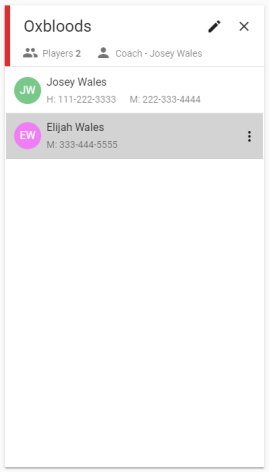
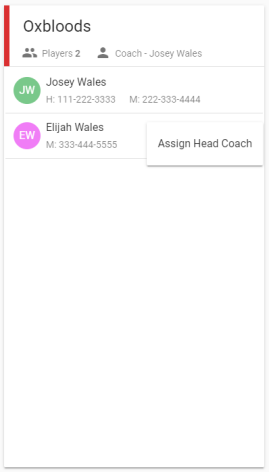
When assigned as head coach, the coach's card moves automatically to the top of the list:
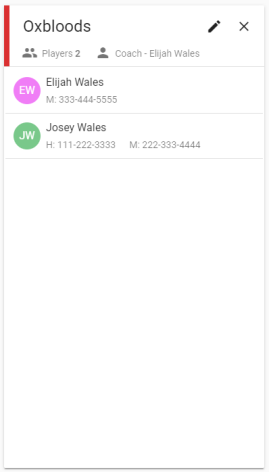
Note: The card of a head coach does not provide the vertical ellipsis.
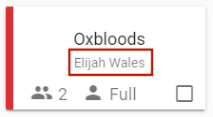
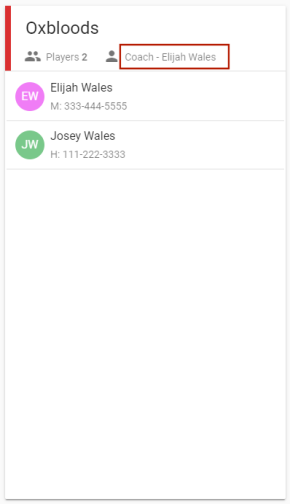
A head coach's name appears below the team name on the collapsed team card and in the header of the expanded team card:
|
|
Editing Team Color and Name and Deleting a Team
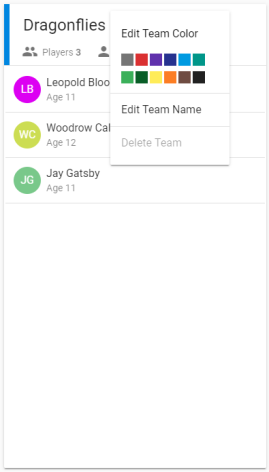
Clicking the pencil icon  in the top-right corner of an expanded team card gives you options to edit the color and name of the team and to delete the team: