Rental Registration Create
Parks & Rec > Rental Registration > Create
The Rental Registration Create process is designed to make it easy for you to view and select available locations and their associated rental facilities and prices before scheduling and booking the rentals.
On the first page of the rental registration create process, all locations as of today’s date appear on individual cards arranged alphabetically.
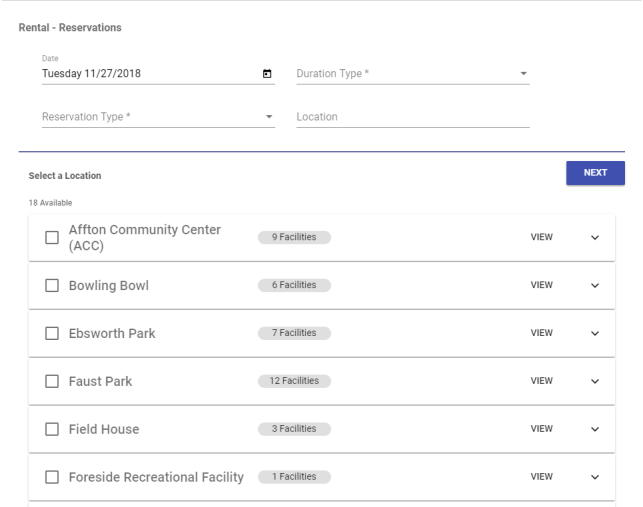
To focus the list, use the Duration Type, Reservation Type and Location filters at the top of the page.
Note: The duration types are hourly, half day and daily, and the available selections on the drop-down are set up at Administration > Parts & Rec. Setup > Available Type.
Each card shows the number of associated facilities. To display an alphabetical list of the facilities, click the chevron  on the far-right side of a card.
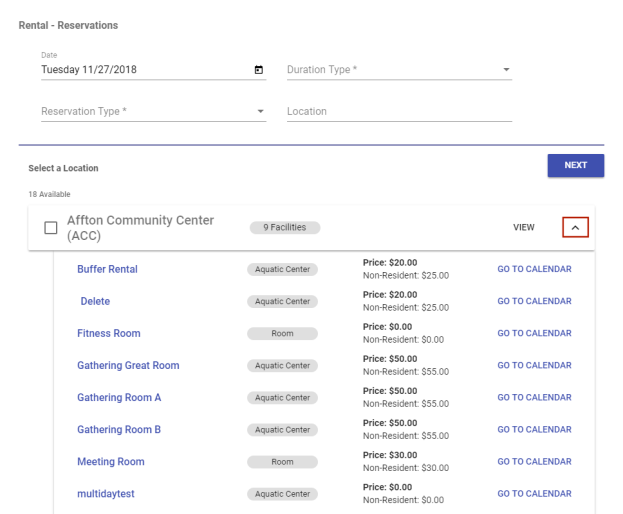
Each facility shows the reservation type and price and contains a link to the Rental Reservations calendar.
To continue the rental registration process, select check boxes next to any locations that contain rental items you may want to reserve, and click the NEXT button.
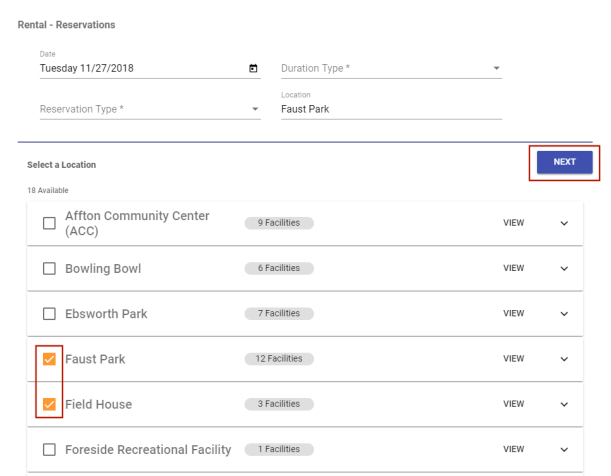
The Rental Reservations calendar opens.
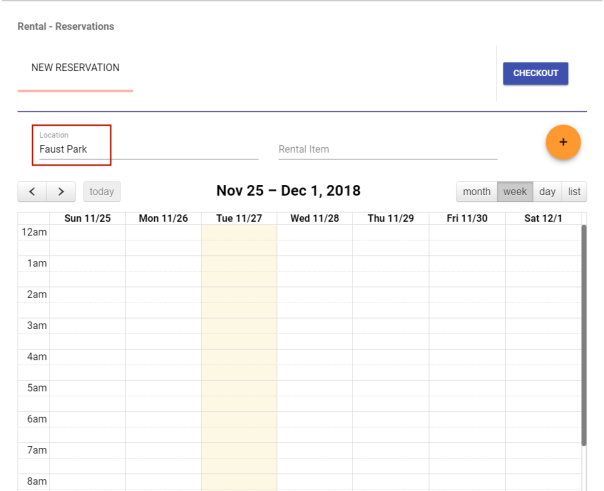
Click in the Rental Item field to select from a drop-down of the facilities that are available for the selected location.
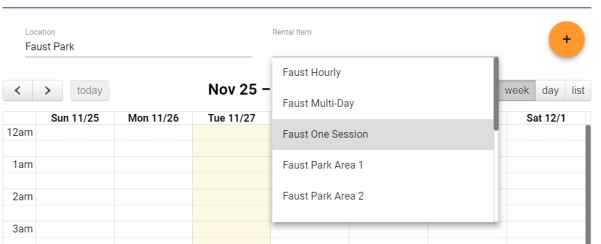
Once you have selected a facility, the calendar reloads to show the available rental times in the unshaded areas.
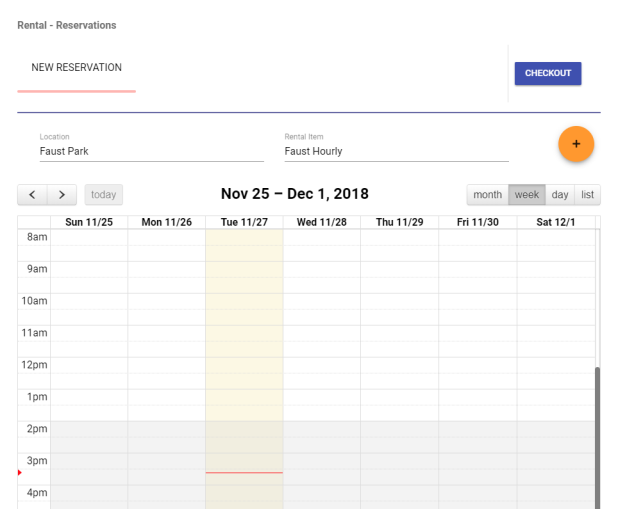
To reserve a time, click directly on the day and start time in the unshaded area, or click the orange plus button  above the calendar. In either instance, a date-time dialog opens for you to select and save the appropriate entries.
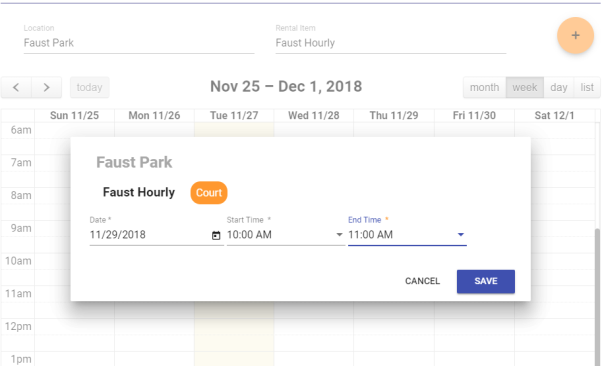
Note: The types of fields on this dialog vary according to the facility reservation type, i.e., whether it is hourly, half day or daily, and only the times that have not been reserved already display on the time drop-downs.
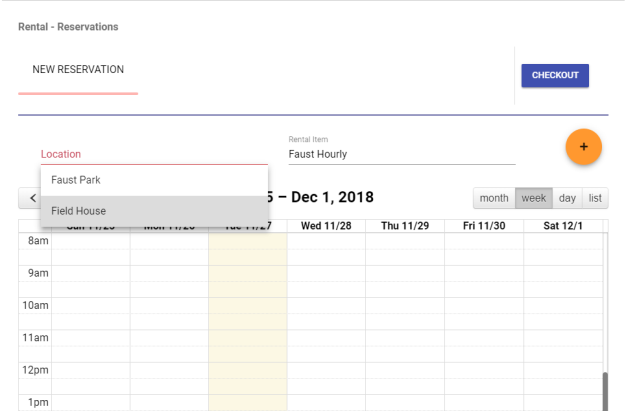
If you want to try another location, clear the Location field, and select from a drop-down of your previously selected locations.
Once you have saved a reservation, a card showing the reservation date, time and rental item displays above the calendar, and the day and time slot is shaded in blue-gray on the calendar.
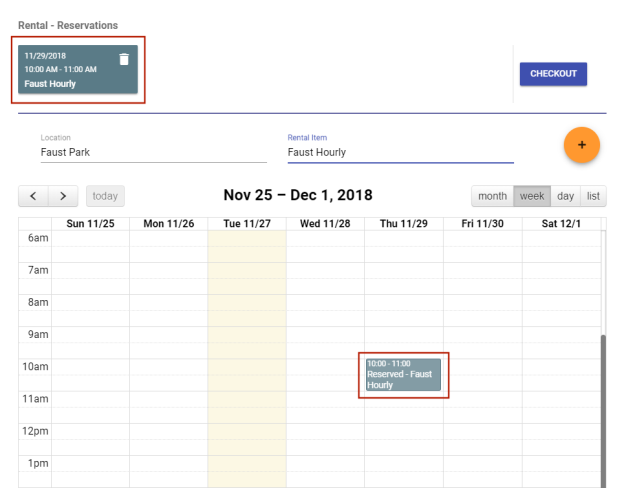
To change the day or time of a saved reservation, click the card or the shaded area in the calendar, and the date-time dialog opens, enabled for editing. To discard a reservation, click the trash can icon on the card.
You may make as many reservations as you need, and a card displays for each one.