League Teams Create/Details
Parks & Rec > League Teams > Create (or Search > Edit)
 Setup
Setup
The Setup fields describe the team and identify the team type.
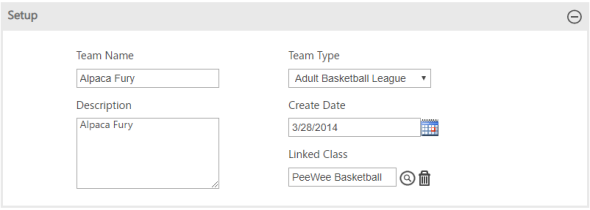
Team Type requires a selection.
Note: Team types are maintained in the Parks & Rec. Setup group on the Administration tab. Each team type requires a defined captain role.
The Linked Class box provides the option for linking a team to a class with a Class Type Format of League Teams in System Settings. In this case, you may update the participant’s team role directly from the Registrants group.
Use the Search button to find a class. Use the Delete button to remove an existing link.
To complete the Registrants or Notes details, click Save after completing the Setup fields.
Registrants
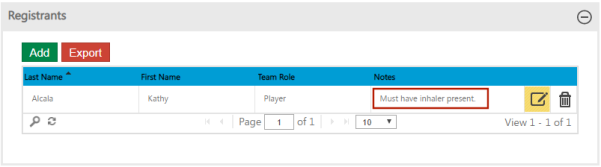
Registrants identifies the participants who have registered for the activity and who are identified as team members.
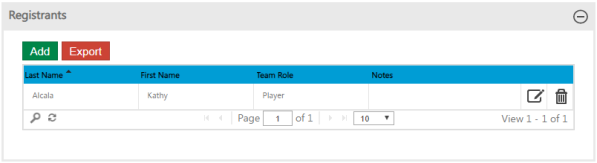
When you add a registrant to a team, the list of available contacts is limited to contacts who are registered for the class linked to the team, if the class linked to the team has a class type for which the Class Type Format is defined as Grouped Individuals.
Click the Edit icon to add notes specific to a team member record.
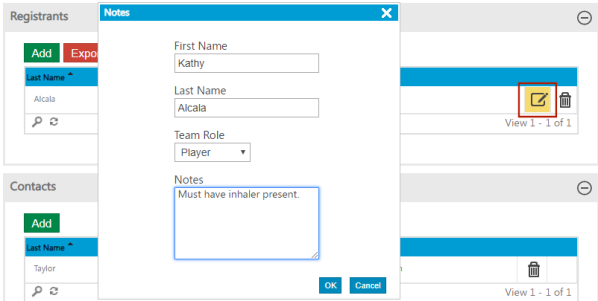
Once you add notes, they are included with the registrant details.
Contacts
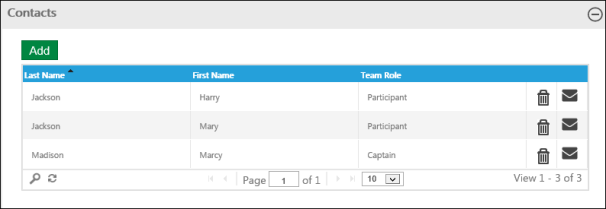
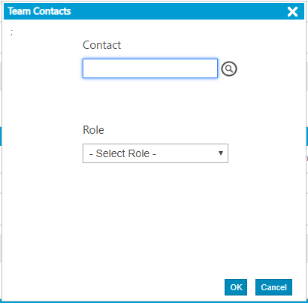
Contacts lets you add contacts to the team and to assign roles to the contracts according to the role types associated with the team type. You may not add contacts to a new team until you first save the team record. The Contacts table includes the Delete and Email options. (The Email option displays after you save the contact information.)
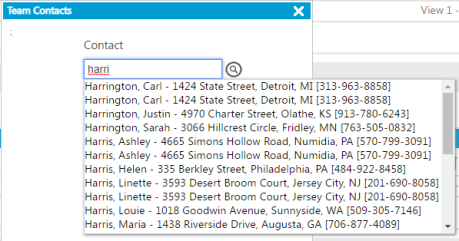
When you are adding a team contact, the Contact field includes auto-complete functionality. As you type the first few letters of a name, the program provides a list of existing options that match the text entered. The more text you enter, the narrower the list of options. When the list shows a match, click it to complete the field.
Notes
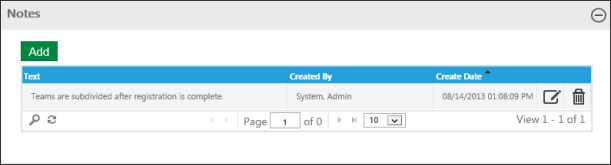
Notes provides additional information for the team. Click the Add or Edit icon to create or maintain notes.