System Settings
Administration > System Setup > System Settings
System Settings defines the parameters for your organization’s Parks & Rec pages, email messages, and reports.
 System Settings
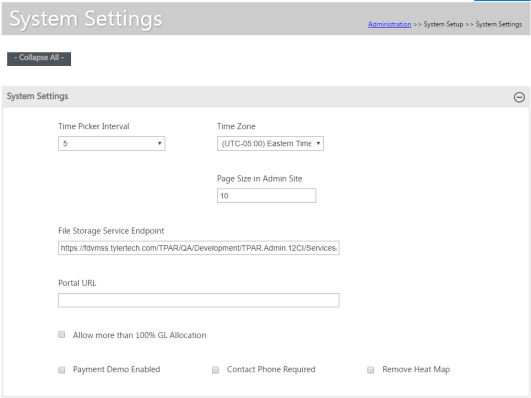
The System Settings fields define the time intervals for class registrations, time zone, and service end point values.
|
Setting |
Description |
|---|---|
|
Time Picker Interval |
Determines the time intervals for class registrations. The minimum interval is 5, allowing classes to be scheduled using 5-minute intervals; for example, a class may be scheduled to begin at 5:05 or end at 7:35. |
|
Time Zone |
Indicates the time zone for your organization. |
|
Page Size in Admin Site |
Assigns the page size for all Administration groups. |
|
File Storage Service Endpoint |
Specifies the endpoint URL for your file storage service. |
|
Portal URL |
Specifies the portal URL. For the Pay Now and Unregister links to work correctly in the Waitlist Message Email Template, this entry is required. |
|
Allow More than 100% GL Allocation |
Directs that on the Fee Details page, you may assign more than 100% from one payment method to more than one general ledger account. |
|
Payment Demo Enabled |
Provides a means for Implementation to test payment processing without completing an actual, real-time payment process. |
|
Contact Phone Required |
If selected, requires users to enter at least one telephone number on a contact record when they add or update a contact. |
|
Remove Heat Map |
If selected, removes the map from the Parks & Rec Administration Dashboard. |
Password Settings
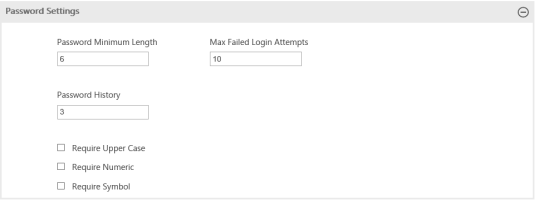
The Password Settings fields define the minimum password length, maximum failed login attempts, password history, and other password requirements.
|
Setting |
Description |
|---|---|
|
Password Minimum Length |
Defines the minimum number of characters a password must contain. |
|
Max Failed Login Attempts |
Specifies the maximum number of failed login attempts allowed before the user is locked out. |
|
Password History |
Identifies the number of new passwords that must be set before a previous password may be used; for example, if Password History is 3, when a user sets a new password, the last three passwords may not be used. |
|
Require Upper Case |
Select if password must contain at least one uppercase character. |
|
Require Numeric |
Select if password must contain at least one numeric digit. |
|
Require Symbol |
Select if password must contain at least one symbol (#, *, %, etc.). |
Residence Verification Settings
The Residence Verification Settings section, depending on the Type selected, defines the resident verification service used for GIS location verification or provides the specific cities or counties that define your organization's residency restrictions.
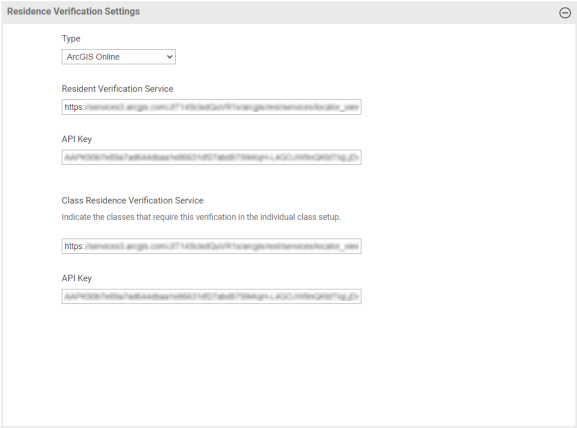
For contact records, if your organization uses ArcGIS Online or ArcGIS Server, the Resident Verification Service field stores the URL for a GIS utility that verifies the contact’s residency.
ArcGIS Online
ArcGIS Server
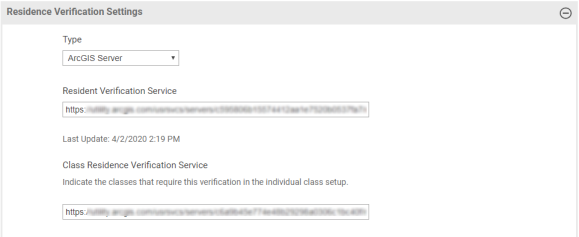
For ArcGIS Server, the search query requires a standard data format of Address 1 + Zip.
For ArcGIS Online, unique URLs and API key (permanent access token) may be associated with the Resident Verification Service and the Class Residence Verification Service.
Note: The Resident Verification Service and Class Residence Verification Service URLs are unique for the locations defined within the Esri GIS software.
The Class Residence Verification Services field defines a class-level boundary service that works with the Check Specific Boundaries setting on the Class Details pages. If this setting is enabled, it enforces registration restrictions according to the specific boundaries defined in the Class Residence Verification Services field. If you have not defined a residents-only restriction, resident pricing is enforced according to the boundaries.
When you register someone for a class using the Administration page, no enforcement is made. When citizens register using the portal, the Class Details page includes the Returning Player check box. If this check box is selected, specific boundaries are not enforced. If this check box is not selected and there is a resident-only restriction, only family members that are in the specified boundary display in the Registrant list. If a resident-only restriction is not applied to the activity, resident pricing is enforced according to defined boundaries.
If your organization does not use a GIS verification service, the value of the Resident City/Cities or Resident County/Counties field determines whether the contact is identified as a resident or nonresident:
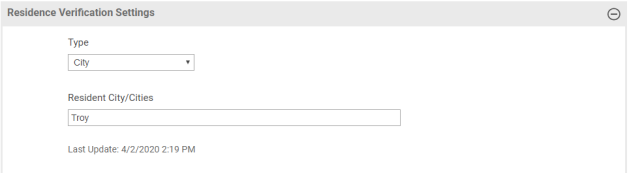
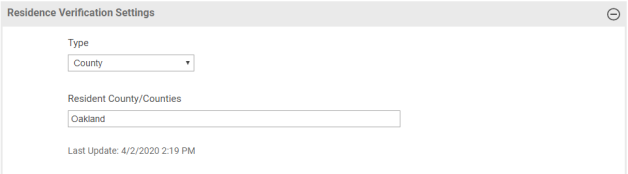
If the contact enters a value that matches the value in one of these fields, the contact is identified as a resident. The Resident City/Cities and Resident County/Counties fields accept multiple city or county names, separated by a comma. When a contact record is added or updated, the residency verification checks against all the cities or counties listed to determine residency.
When you add or remove a city or county from the verification settings, the residency status for all contacts is updated automatically; however, if the Resident Override indicator is selected for a contact, the residency is not changed based on the values in these fields.
Email Settings
 Report Settings
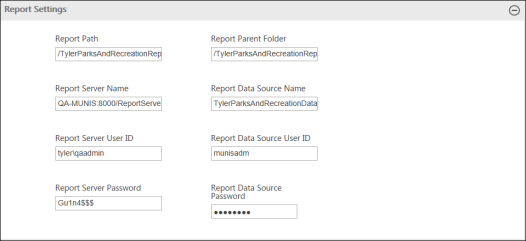
The Report Settings fields define the path, server, and access details for reports.
Site Contact Settings
The Site Contact Settings fields store a contact name and telephone number for your organization. The contact information may be included on receipts printed from the citizen portal.

Class Settings
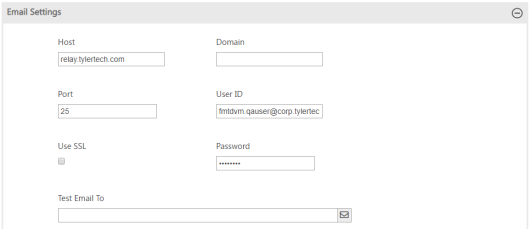
Class Settings defines whether to have contacts moved automatically from the wait list to the registration list when space becomes available. To turn on this setting, select the Default Auto Add Wait List Contacts as Registrants check box.

When this setting is turned on, the first person in line on the wait list is moved to the registration list and sent an email, the template for which you may find in the Email Settings section of the System Settings page. This template includes links to let the user log in and, if the class is not free, pay the invoice for the class or unregister from the class. A user who unregisters is removed automatically from the class, and the next person on the wait list is moved into the registrant position and sent an email.
If the contact declines a spot in the class, the process starts over with the next contact on the wait list.
If the auto wait list setting is turned on and the capacity of a class increases by however many seats, wait list contacts will be added to the class based on the number of seats available.
Default Auto Add Wait List Contacts as Registrants is a global setting; however, the setting also appears on individual classes so you may override the global setting where desired.
Note: A user who chooses to go on the wait list through the portal receives a message explaining that when a slot in the class opens, he or she will be added to the class and invoiced automatically and will be asked to accept or decline.
Registration Settings
Registration Settings contains an Enforce Emergency Contact for Minors check box.

With this box selected, any citizen under 18 years of age is required to add an emergency contact when registering for classes or joining memberships. If the citizen does not have an emergency contact, the following message displays:
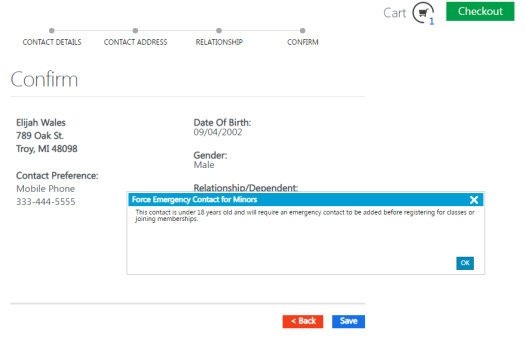
This message also displays when a dependent is added on the fly during a registration and when a contact under 18 years of age is added through the administrative side of Parks & Rec. Although the Contact Details page for an underage contact may be saved, the message serves as a reminder that, at some point, an emergency contact needs to be designated.
Sign-In Settings
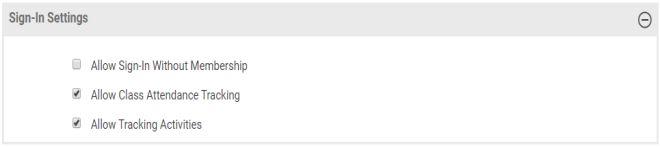
Sign-In Settings lets you set up the Sign-In page to track class attendance, non-membership sign-ins and activities: