Fee
Administration > Cashier Setup > Fee
Fee maintains the details for activity charges.
When you add or update a fee, you must assign a fee schedule and add at least one payment method with general ledger accounts:
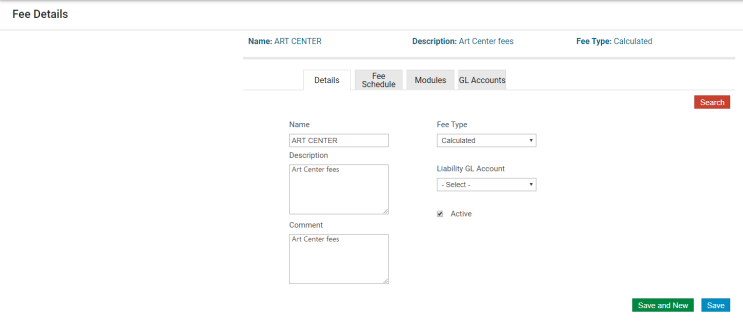
The Liability GL Account field lets you associate a liability account with a fee. For the specified account to be used for refunds of this fee, the check box for Use Fee Liability GL Account for Refunds must be selected on the Payment Method Details page for the payment method used with this fee.
If you attempt to delete a fee that is assigned to an add-on item, class type, rental item, or fee template, an error displays.
Note: Fees must be designated as Recreation Management fees to be assigned to class records or applied to a template, and the only selection available for Fee Type is Calculated.
If enabled in Integration Settings, the Charge Code field indicates the Munis AR charge code to associate with the fee. The AR charge code should be a CAT 1 charge code with the Use for Miscellaneous Cash check box selected. When you complete the AR Export for Invoices, you may use the Invoice Import program in Munis General Billing to import and then process the charges.
Fee schedules are created using the Fee Schedule option on the Cashier Setup menu. To assign a fee schedule for a fee, select the Fee Schedule tab and click Add. If you attempt to save a fee record prior to creating a fee schedule, the program displays a reminder message:
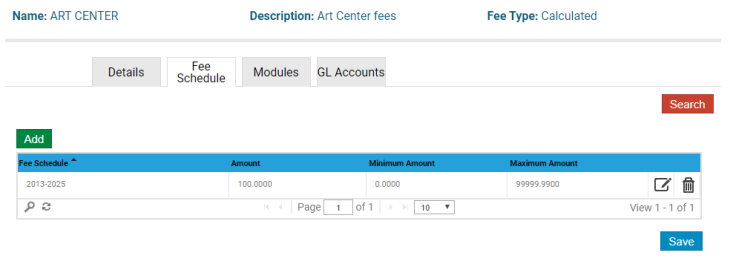
You may set up a fee as a percentage or an amount (flat fee).
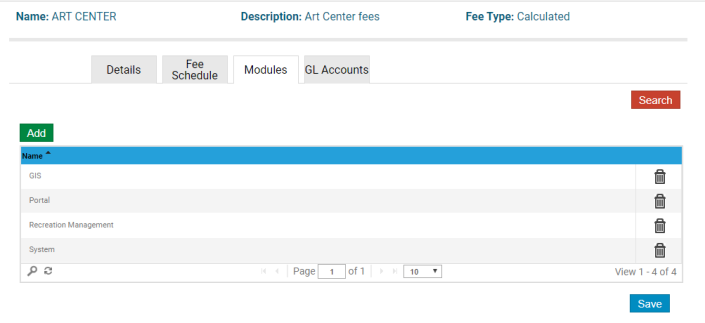
The Modules tab assigns the fee to a Parks & Rec module:
The GL Accounts tab maintains the general ledger account for the fee. The Id check boxes let you specify a payment type or types for the fee:
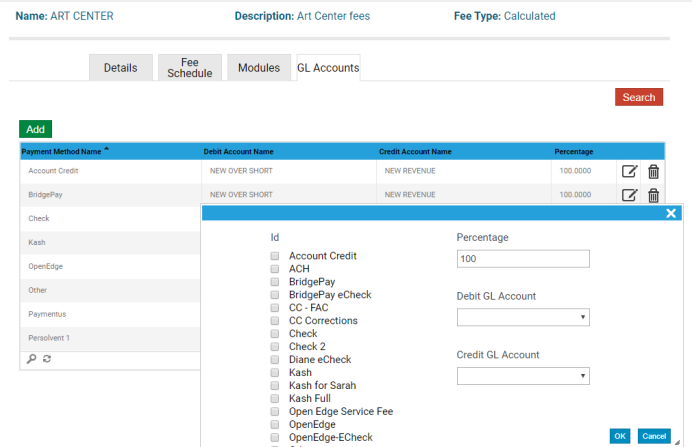
When you add the payment method, the default value of the Percentage field is 100; this field is required and must contain a value of 0.0001 to 100, inclusive. You must assign a general ledger account for each fee associated with a payment method.