Discount
Administration > Cashier Setup > Discount
Discount defines the types of discounts that may be applied to individual classes, rentals or memberships.
The Discount page contains a table of existing discounts, with each row corresponding to a discount. To add a discount to the grid, click Create; to edit a discount, click the edit icon in the corresponding row. In either instance, the Discount Details page opens:
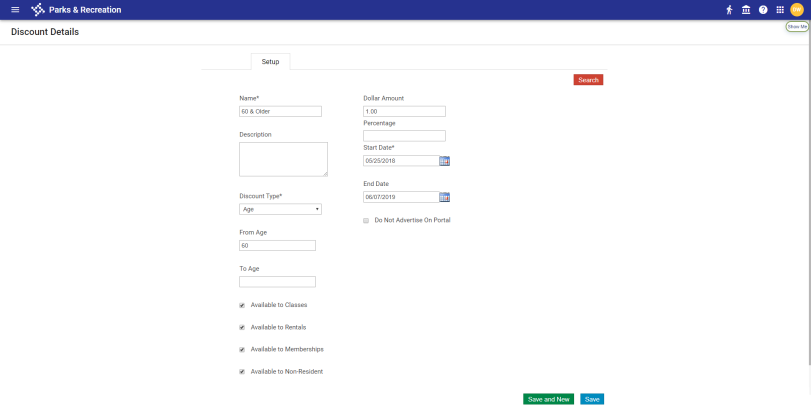
The Name of the discount, the Discount Type, and the Start Date are required entries. A discount Dollar Amount or Percentage also must be entered.
To prevent discounts from appearing on the citizen portal, select the Do Not Advertise on Portal check box. If a registrant is eligible, hidden discounts will still be applied and appear on the final payment page.
To make this discount available for family members, classes, rentals, memberships or non-residents, select the appropriate check box at the bottom of the page; for example, selecting Available to Classes does not mean the discount is applied automatically to all classes; it means the discount may be applied to whatever classes you choose.
Note: Changes will apply to newly added records only.
 Discount Types
|
Discount Type |
Description |
|---|---|
|
Age |
Applies to a contact’s age. Selecting Age displays From Age and To Age fields. Any contact whose age falls within the range entered here is eligible for this discount. Both fields do not require entries; for example, if the discount is for seniors, only the From Age needs an entry. |
|
Employee |
Applies to any employee who has the Employee check box checked on the Contact Details page. Selecting Employee displays an Available to Family Members check box. Selecting this check box makes family members also eligible for the employee discount. |
|
Custom |
May apply to AAA members, veterans, boy scouts and other groups of your choosing. All custom discounts are displayed and available for selection on the Contact Details page. Selecting this check box also displays the Available to Family Members check box. |
|
Multi-Family |
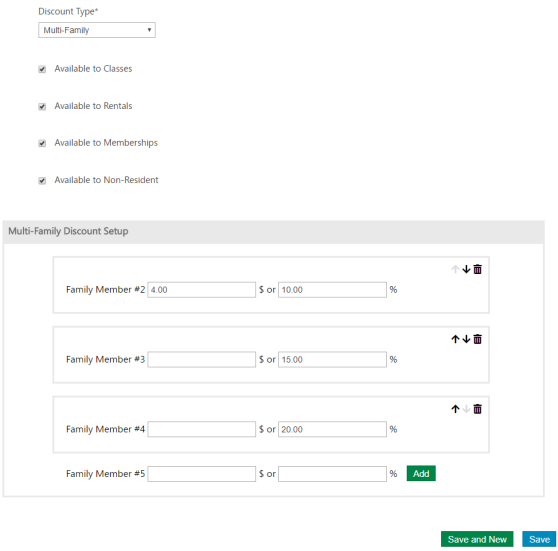
Applies when a contact registers other family members for the same class or membership. Selecting Multi-Family displays a Multi-Family Discount Setup section at the bottom of the page (see image below). Beginning with Family Member #2, this section contains fields for setting up dollar amount or percentage discounts that apply when additional family members are registered. For Family Member #2, select the discount dollar amount or percentage and click Add. Discount dollar amount and percentage fields for Family Member #3 display the Family Member #2 fields to let you add a discount for a third family member, and so on. Note: Steps with zero-dollar discount amounts are permitted. You may change the order of the discounts by clicking the up or down arrow to the right of the fields. If the number of family members registered for the same class exceeds the number set up here, the last discount is applied to the additional members; for example, if multi-family discount is set up for family members 2 and 3 only and a fourth and fifth member are registered, the discount applied to family member 3 is applied to members 4 and 5. Existing family class and membership registrations in determining whether a multi-family discount is eligible during a registration. During the registration payment process, the Order Summary displays a discount line item for each family member with the family member number included. |
|
Members |
Applies to anyone who is a member of a membership selected on this page and is registering for a class that participates in the membership. (Selecting Members displays a Memberships drop-down.) The discount also applies to family members associated with any family memberships selected. |
|
Memberships |
Visible when Members is selected as the Discount Type, provides a drop-down of memberships for selection. Multiple memberships may be selected. |
Multi-Family Discount Setup Section